How Annotation (Mark & Edit) Feature Makes AI Home Design Changes Easier
TL;DR
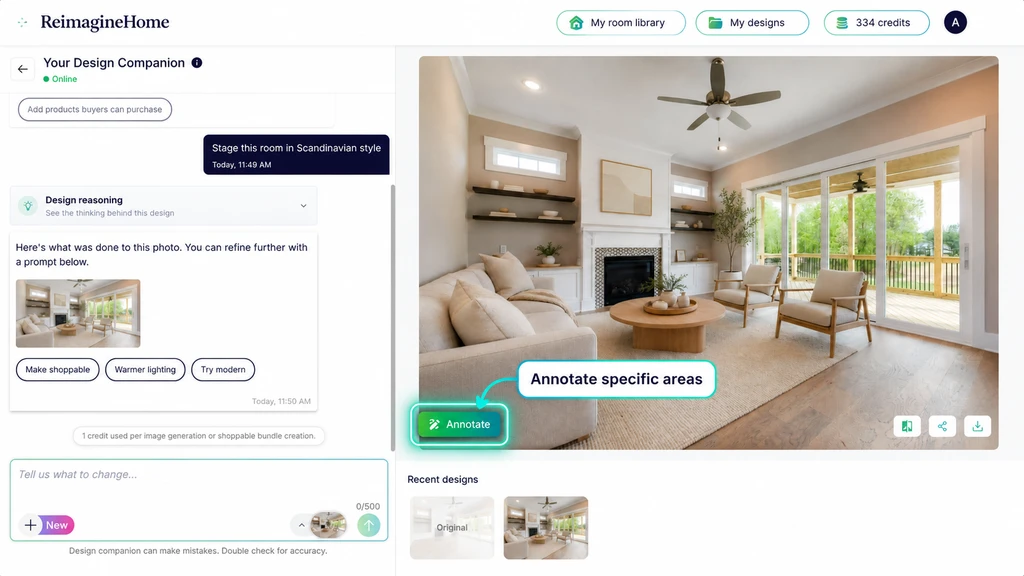
Annotation or Mark & Edit lets you visually mark exactly where you want changes in an AI-designed room and add a short instruction. This helps you fix only what needs attention, making refinements clearer, faster, and easier for homeowners, real estate pros, and designers.
The challenge of communicating design changes
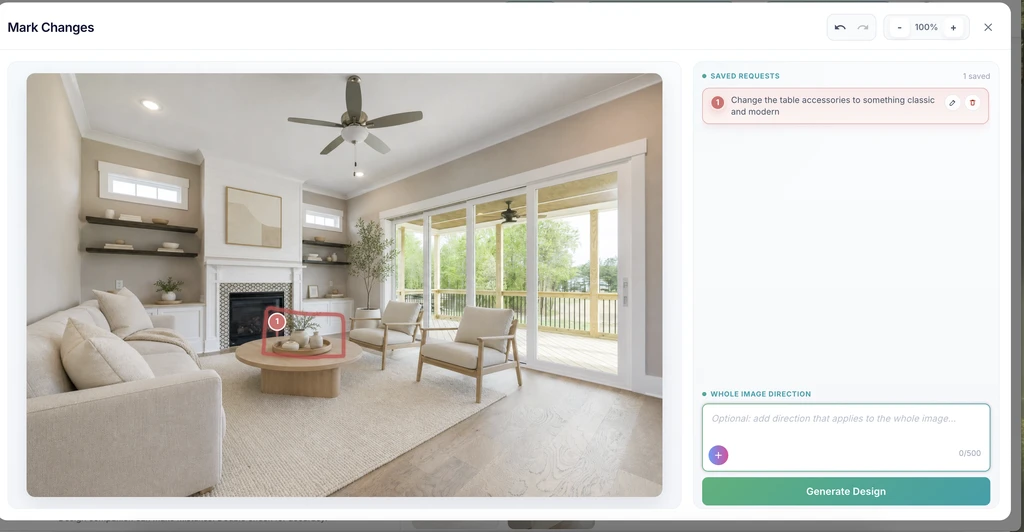
Annotation lets users mark a specific area and add design directions before generating a refined room image.
You know what you want to change in a room photo but actually explaining it to an AI can be surprisingly tough. Maybe you love everything except the coffee table styling, or you want a different painting over the sofa. Typing out a prompt is helpful, but it’s easy for the AI to misunderstand which area you mean or apply your instruction more broadly than you’d like. This gap between what you imagine and what the AI understands is where small design changes fall apart. Annotation makes that interaction feel more like working with a designer: you can literally point to what you’d like to change, give a quick note, and the AI zeroes in.
-
What is Annotation?
Annotation is simply Mark & Edit which gives you a simple way to show the AI exactly what to change in a room photo. You just select an area like a rug, side table, piece of wall art—and add a brief instruction (e.g., “Make this rug a lighter color” or “Replace these cushions with something bold”). This targeted approach removes the guesswork from the AI’s job and puts you in control of small but meaningful updates.
Expert Insight
A real estate agent prepping photos for a new listing loved the staged living room but needed just the rug updated. Before, she would send a long email or keep re-running text prompts. Using Annotation, she marked the rug, requested a more neutral color, and got the perfect look—without redoing the whole image.
-
Why are small changes so difficult for AI to get right?
Most design feedback is visual by nature. In a real conversation, you’d point and say, “Let’s update this corner.” Written prompts ("change the art on the left wall") can sometimes be too vague—the AI might change the wrong thing or too much of the image. Annotation bridges the gap, helping you communicate more visually and precisely. It’s the difference between describing and showing.
-
How Annotation works: Simple steps for precise edits
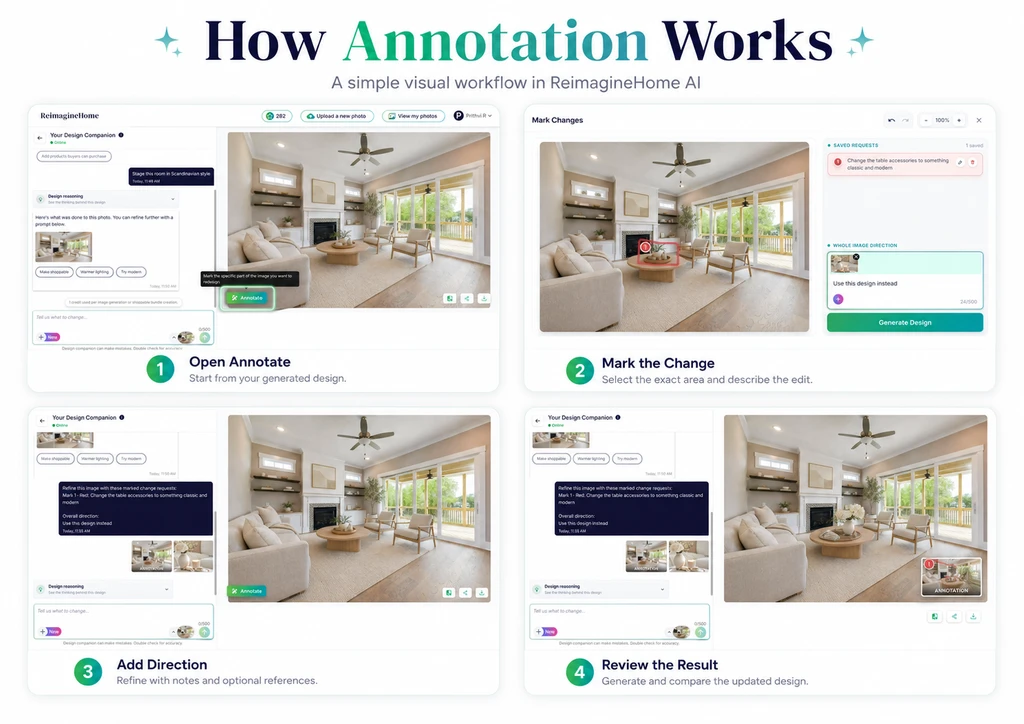
A simple visual workflow for using annotation to guide precise AI home design edits.
Here’s what the Annotation workflow looks like in ReimagineHome AI:
- Upload or select your room image.
- Click the Annotate or Mark Changes button.
- Draw around (mark) the spot you want to change.
- Add a quick instruction for that spot.
- (Optional) Add an image-wide directive—like "keep everything soft and neutral"—or include a reference photo for clearer style cues.
- Review your request and generate the updated design.
-
Where does Annotation shine?
This feature is tailor-made for targeted tweaks. For example:
- A homeowner likes their staged living room but wants more modern tabletop decor.
- A real estate agent wants a room to look a little warmer before listing photos go live.
- An interior designer wants to test out two options for the same element—say, different wall art or lighting—before showing a client.
-
Why reference images and whole-room direction matter
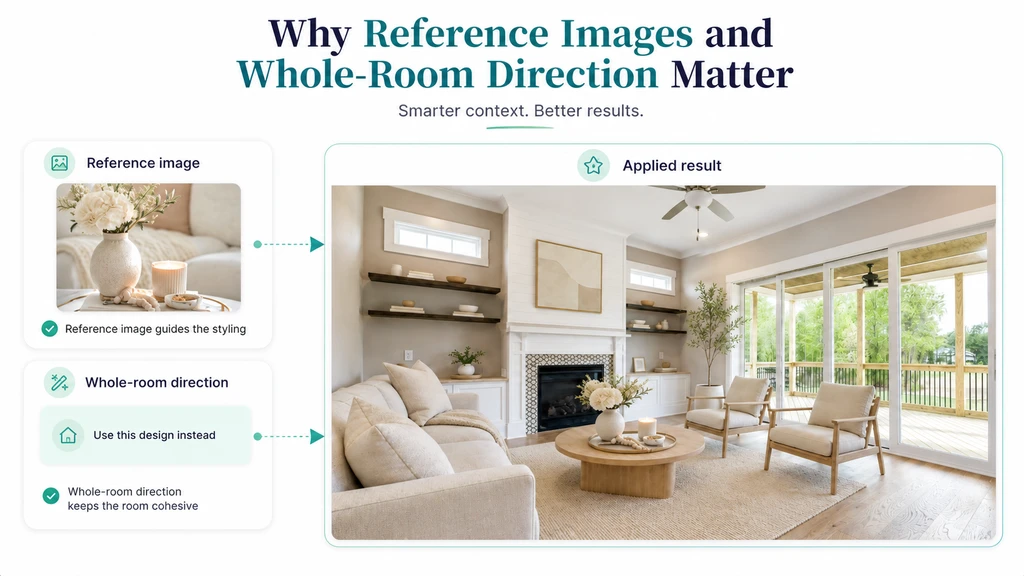
Reference images guide the style, while whole-room direction keeps the final design consistent.
Design words—"modern classic,” “cozy,” “premium”—mean different things to different people. Reference images help bridge that style interpretation gap. When you upload a visual reference, you give AI a clear style target for the marked area (or the whole space, if you’re giving a broad direction). Adding a whole-room instruction ("keep the room soft, neutral, and modern") ensures small tweaks feel cohesive, rather than standing out awkwardly from the original.
-
Mistakes Annotation helps you avoid
By letting you mark exactly what should be changed, you sidestep these common design edit headaches:
- Unwanted room-wide changes: Only your marked area is affected, not the whole image.
- Vague or misunderstood prompts: Visual targeting removes ambiguity.
- Mismatched finishes or styles: Reference photos help nail your intended look.
- Wasted time on trial and error: Requests are stored for review, reducing back-and-forth.
Visualization Scenario
Imagine having your living room image in front of you, circling the sofa area, typing a quick note ('add green velvet cushions'), and instantly previewing how that change elevates your space.
Common questions about Annotation
What does Annotation do for AI home design?
It lets you highlight a specific area of an image, write a quick instruction for it, and give AI precise guidance for a design update.
Can I use Annotation for only one item in a room?
Absolutely! Annotation is designed for targeted changes—like decor, furniture, rugs, or wall details—without affecting the rest of the room.
Do I need a reference image with every edit?
No, but including a reference can help if you want the AI’s design to match a certain material, color, or mood.
What if I later change my mind about an edit?
You can review, refine, or delete any saved instruction before generating a new design.
Does it only work with ReimagineHome AI?
Yes. Currently, this annotation feature is available only in ReimagineHome AI and helps users mark specific areas for clearer design edits..
The bottom line: More control, less confusion
Annotation makes AI home design more visual, intuitive, and accurate. With ReimagineHome AI, you can communicate exactly what needs to change, where it should happen, and how you want it refined - without relying on long prompts or repeated do-overs. If you’re refining a space and want your feedback to land clearly, this is the feature to try.